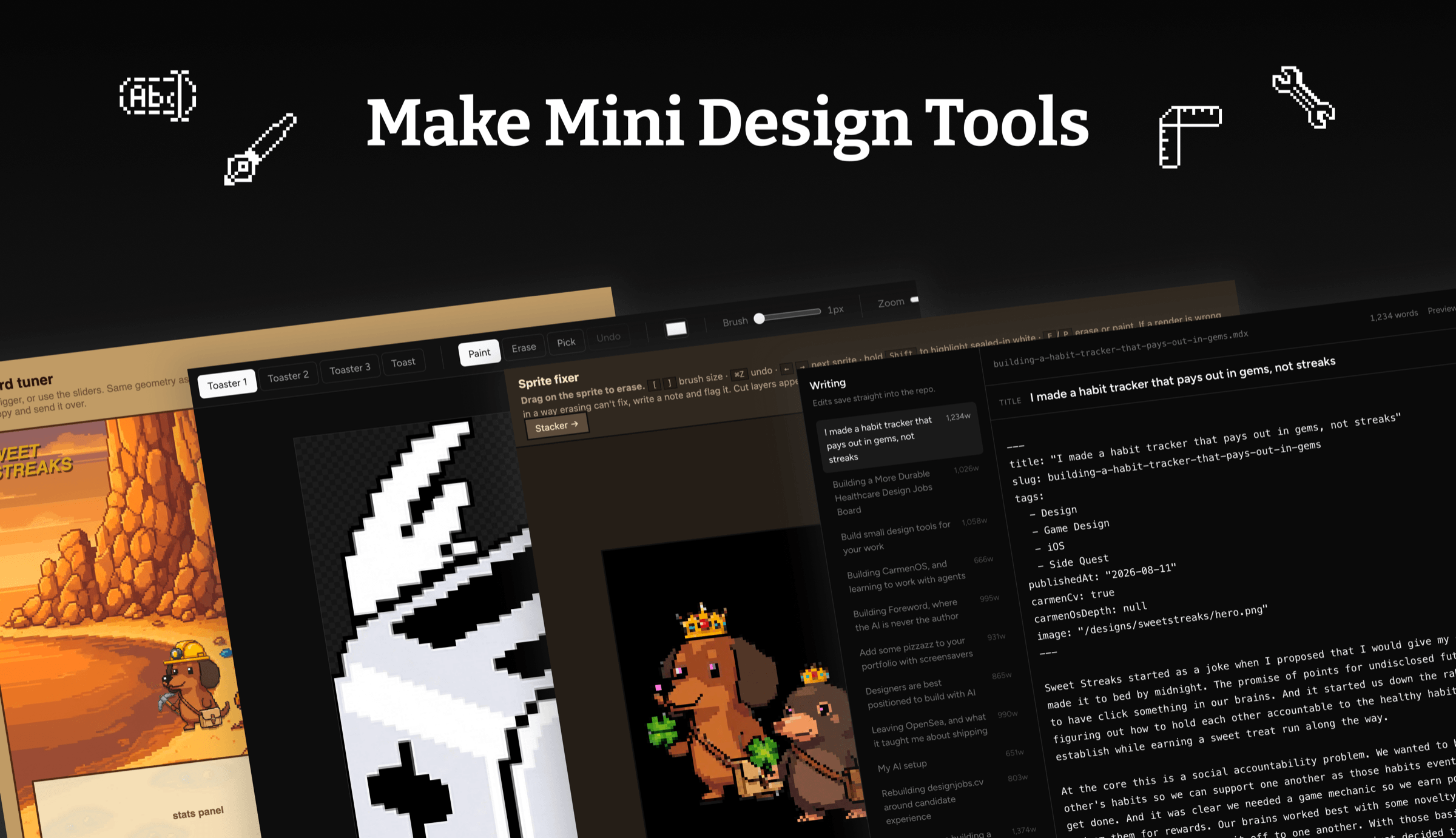
Build small design tools for your work
There comes a moment when you're on your third prompt trying to solve a visual issue and each additional prompt gets you further from what you want. Our core instinct as designers is to manually nudge it yourself just like you would in Figma. But in this AI prompt forward world, the first remediation step is likely to re-prompt and hope for a different outcome. What actually works is to stop re-explaining and ask for a controller instead. Tuning is a feedback loop: to look, nudge, look again, tweak; and language is a terrible interface for it.
A caveat before we being, I use Claude Code via Terminal. I sometimes head to Figma for specific ideation needs or most likely to create a marketing asset. There are some AI tools that already allow for granular nudging - like Cursor's Design Mode or Claude Design. These are great on net new work but if you're working on an existing code base or native applications, these tools fall short. Cursor is better equipped for these production level edits, but it's sometimes easier to just ask your agent to make you a tool vs wrestling with Cursor's UI. At the end of the day, it's all code.
Ok lets dig in.
The Leva Controller
The concept of a GUI that allows for visual manipulation goes way back but the concept of modern day Leva controller (first made for React) has a more recent history. LLMs were obviously trained on React and other popular open source models so if you ask an agent to make you a Leva controller for whatever UI you want to manipulate, it knows what you're talking about. To get the best out of using a Leva controller you need to very specific about what you're trying to nudge.
"Make me a Leva controller so I can nudge the typography (size, leading) and padding of this text layout. Include existing design system values I can select from, as well as a way to customize values."
Established fact
Beagle mutts are the best dogs
Half beagle, half whatever wandered through the yard. You get the nose, which is a scientific instrument, and the ears, which are purely decorative. You lose most of the baying. What is left is a dog that will follow a smell directly into a wall and then look at you as though you moved it.
padding: 24px;
border: 1px solid #262626;
border-radius: 8px;
line-height: 1.6;

h4 { font-size: 32px; margin: 8px 0 12px; }
p  { font-size: 16px; margin: 0px 0 0px; }
What a Leva is best for: tweaking paddings, swapping out typography choices, border radius tests, color swaps, toggling between layout options, etc.
What it's not good at: helping you fix flow issues, overhauling layouts, or anything where you need to make dramatic pivots.
The Canvas Layout
Sometimes what you need is a canvas viewer so you can review all your screens just like you would in Figma. When working directly in code it's very easy to get tunnel vision and sometimes taking a step back is the best thing to do. It's straightforward to ask your agent to create a canvas layout of all the flows you've but be specific about how you want things organized: by flow, by state, by theme clusters.
"Make me a Canvas Layout that shows all screens and states for onboarding, empty states, the main flow and settings. Build this like a Figma file viewer where I can zoom in and anchor to a specific page. Lazy load the screens in as needed."
The visual corrector
I've generated LLM images for a few projects recently and a gripe I continue having is how poorly masked some elements can be. When I built the flying toasters screensaver, the generated sprites were good but not clean. There were stray pixels around the wings, edges that were clipped oddly, and colors that drifted between frames. I could have regenerated the images and hoped for the best but with every regeneration it didn't solve my problem. I don't have an Adobe sub and didn't feel like getting one just to fix a few sprites. Instead I built a pixel editor: paint, erase, eyedropper, adjustable brush, undo, and a save that writes the real pixels back to disk.
It took 5 mins to get the sprite fixer up and running with the tooling I needed. It's not a Adobe level workhorse but it doesn't have to be. It just needs to fix four sprites.
"Make me a sprite fixer so I can erase and paint a few pixels for the flying toaster animation frames."
The real one saves back to the file. This one forgets, so poke at it.
The text editor
For anyone who has a blog for their AI coded portfolio, you're likely missing editing your text in an UI like Medium or Substack. You can ask your agent to make you a text editor that saves work locally.
"Make me a text layout controller where I can fully edit the text of each writings post, include controls for bold, italic, quotes, primary color, etc."
Figma is a middle man. LLMs are a middle man.
Every design tool we've been asked to use is just code with an interface. While I don't use Figma as much as I used to, I don't necessarily think it's a dead tool to never use again. Using any LLM to generate an interface & code is still a middle man, just like Figma.
Every tool is a bridge between what you're picturing in your head and what you're trying to build. It's changed from manual nudging, handoffs, feedback loops with various devs, to speaking & writing what we want directly to an LLM (who can build just about anything). It's a firehose and it's only as good at what you direct it at, and the amount of effort and care you take to make the water stream just right for the fire you're trying to put out.
You need to select the tool that is equal parts accurate and fast for whatever you're trying to nail down. As you build prototypes and eventual production grade code, creating small design tools should become a critical part of your workflow. At best it shows you the edges of what an AI can and can't do, and at worst it's nostalgic for the days of manually laboring over every pixel in Figma.
I hope you found these tips helpful. Feed this article to your agent and make a skill from it!